Clergy Connect
Getting Started
Six things to know. Keep this by your phone.

- 1
Signing in
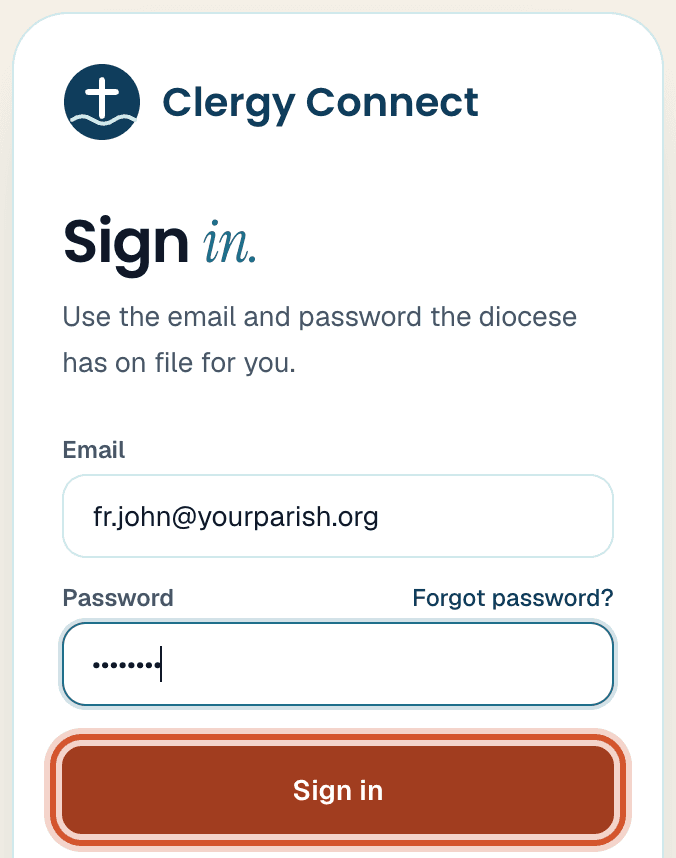
Go to clergy-connect.com/login and sign in with your email and password. First time? Tap Set Your Own Password in your welcome email. Forgot it? Tap Forgot password? on the sign-in page. - 2
Keep it on your phone
Open clergy-connect.com/install on your phone and follow the one or two taps it shows. Clergy Connect then opens like an app, and you'll usually stay signed in. - 3
Your churches
In My Profile, pick every church under Churches you cover, check your Travel radius (miles) (or tick Any distance to hear about every request), then tap Save profile. - 4
Your Masses
In My Schedule, add each weekly Mass and confession time: pick the type, day, time and church, then tap Add. Only on some Sundays? Change Every week to Certain weeks. Funerals and weddings go in by date. You only do this once. - 5
Can't make one?
Tap Request a Sub at the top, pick the date (or several), and tap Submit request. Once the diocese office approves it, nearby priests are emailed for you. The Mass is yours until someone claims it, and you're emailed when they do. - 6
Asked to cover?
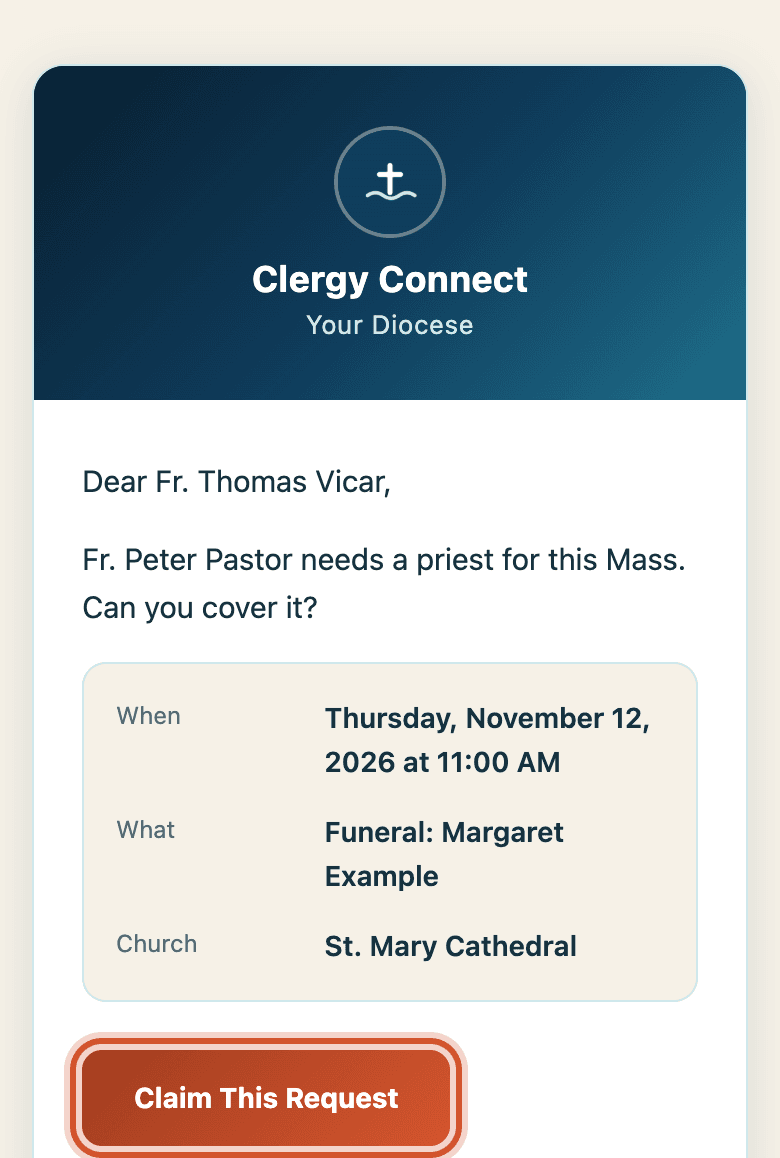
You'll get an email. Tap Claim This Request, then Yes, I'll cover this, or Sorry, I can't so it moves on sooner. No sign-in needed. The first priest to say yes covers it.
Rather not sign in?
Use the Quick Link at the bottom of every email we send you.