Clergy Connect Guide
How it works for you, step by step, with pictures of each screen.
Welcome, Father
Every Mass covered, without the phone tree.
Getting started
Step 1: Signing in
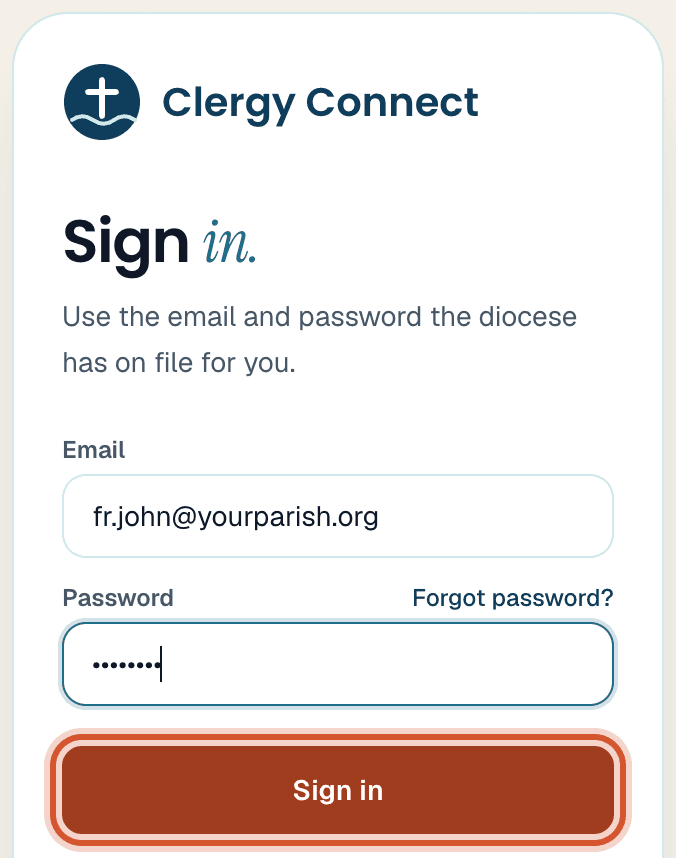
On your phone or computerGo to clergy-connect.com/
login and sign in with your email and password. First time? Tap Set Your Own Password in your welcome email. Forgot it? Tap Forgot password? on the sign-in page. Show meHide pictures
Step 2: Keep it on your phone
On your phone or computerOpen clergy-connect.com/
install on your phone and follow the one or two taps it shows. Clergy Connect then opens like an app, and you'll usually stay signed in. Show meHide pictures
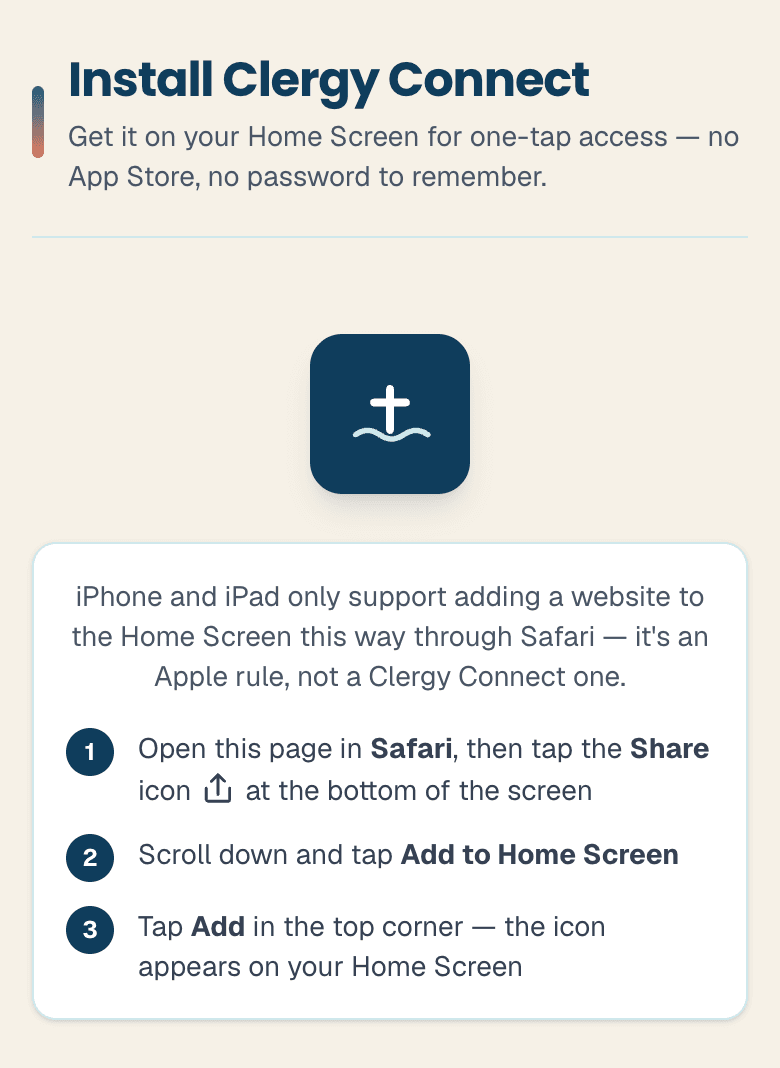
On an iPhone, in Safari: Share, then Add to Home Screen. Step 3: Your churches
On your phone or computerIn My Profile, pick every church under Churches you cover, check your Travel radius (miles) (or tick Any distance to hear about every request), then tap Save profile.
Show meHide pictures
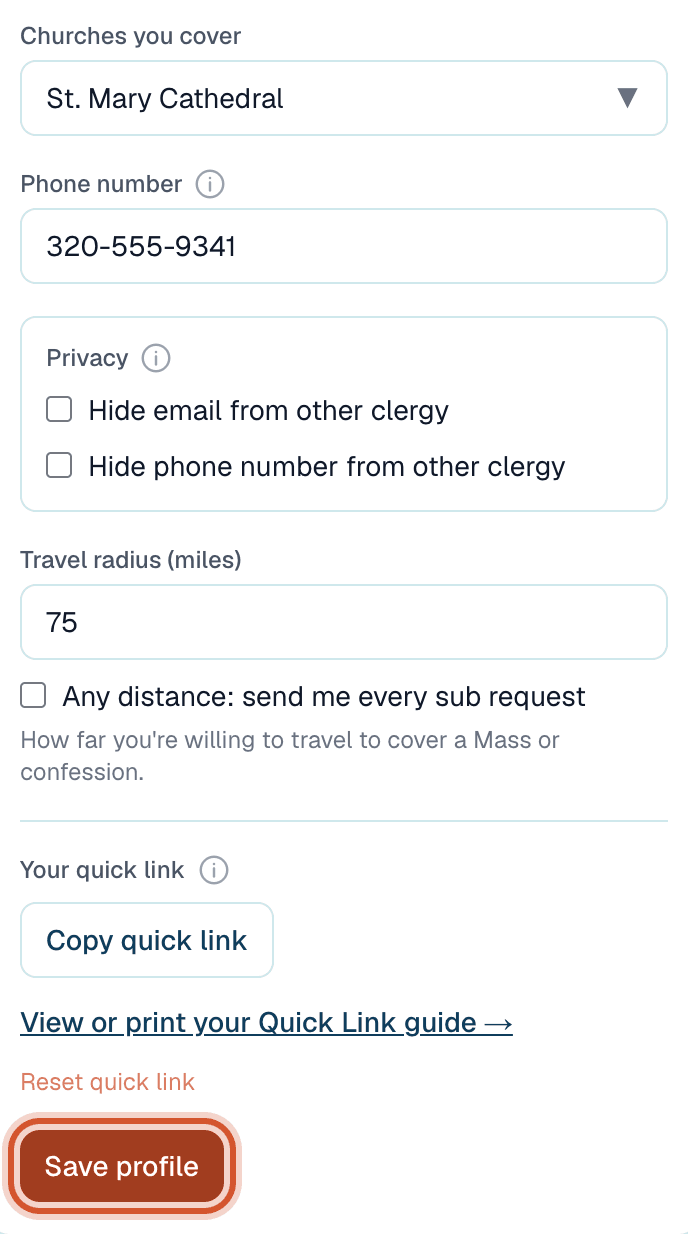
Pick your churches, then Save profile. Step 4: Your Masses
On your phone or computerIn My Schedule, add each weekly Mass and confession time: pick the type, day, time and church, then tap Add. Funerals and weddings go in by date. You only do this once.
Show meHide pictures
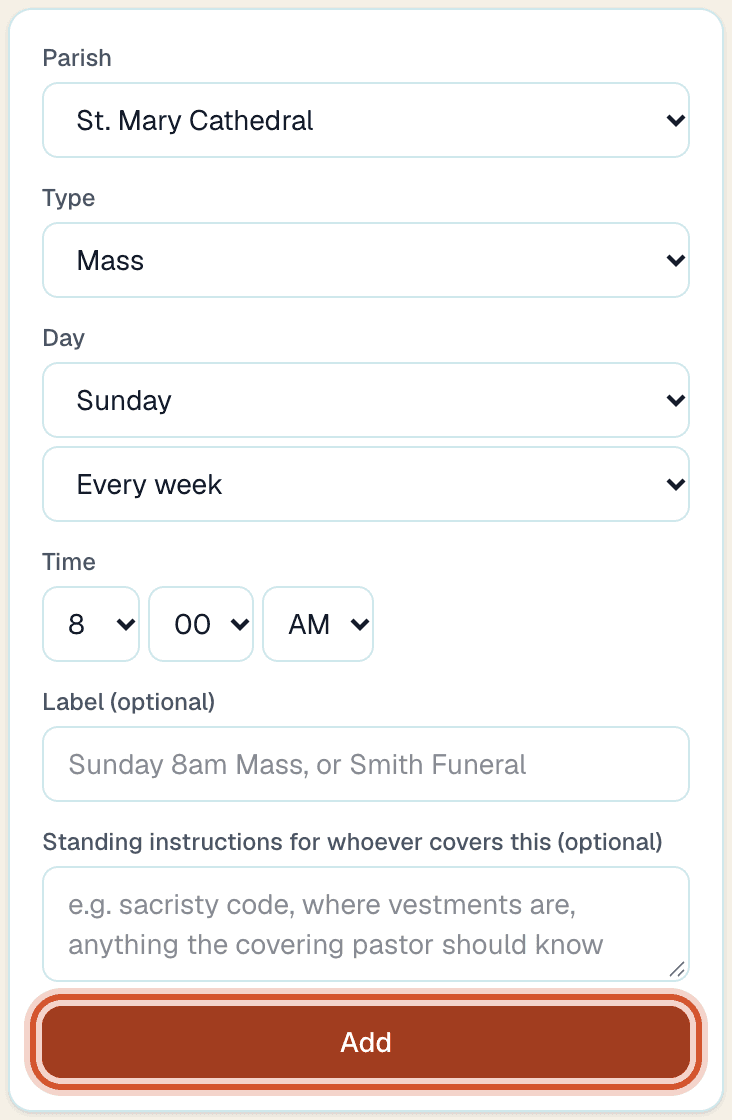
Type, day, time and church, then Add. Step 5: Can't make one?
On your phone or computerTap Request a Sub at the top, pick the date (or several), and tap Submit request. Nearby priests are emailed for you. The Mass is yours until someone claims it, and you're emailed when they do.
Show meHide pictures
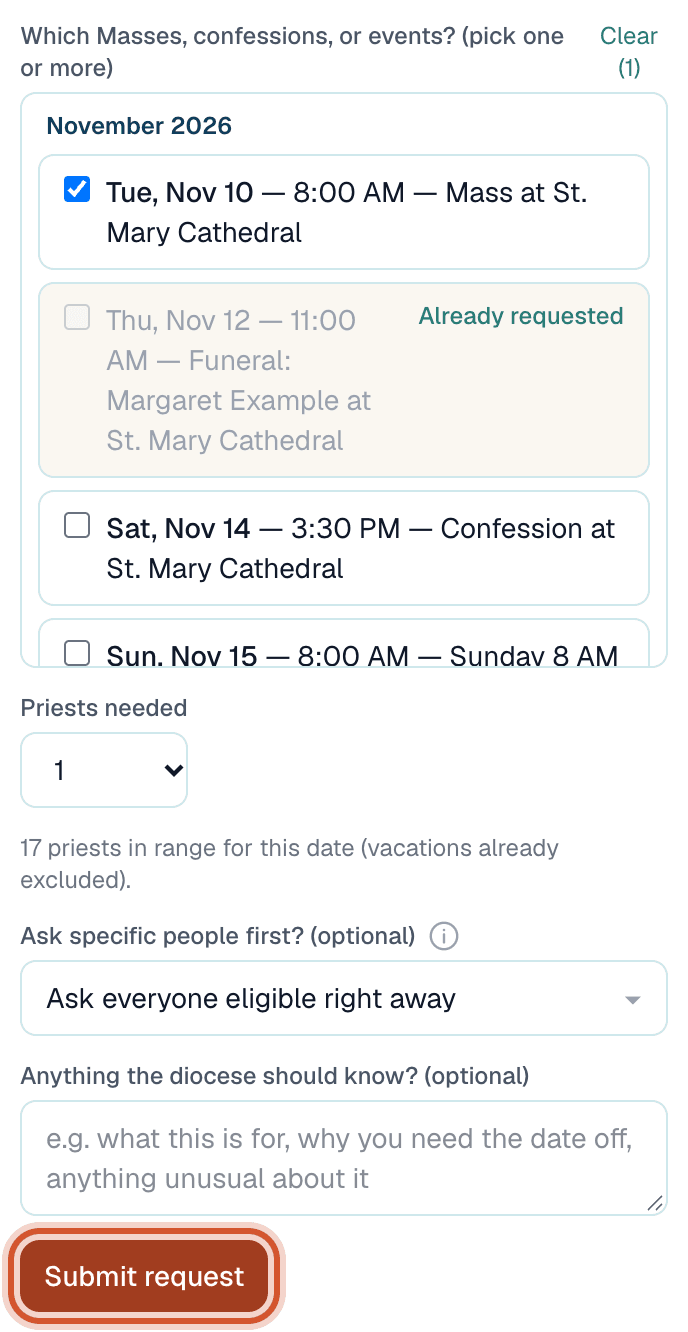
Pick one date or several, then Submit request. Step 6: Asked to cover?
In your emailYou'll get an email. Tap Claim This Request, then Yes, I'll cover this, or Sorry, I can't so it moves on sooner. No sign-in needed. The first priest to say yes covers it.
Show meHide pictures
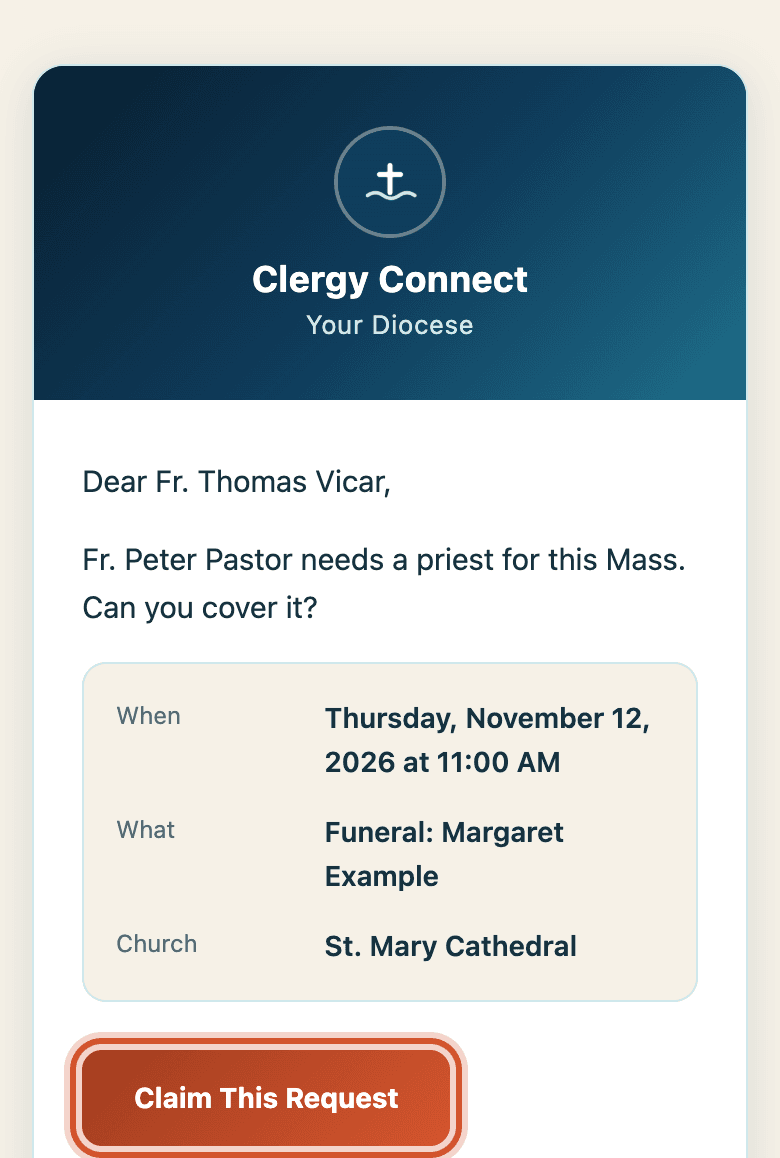
The email. 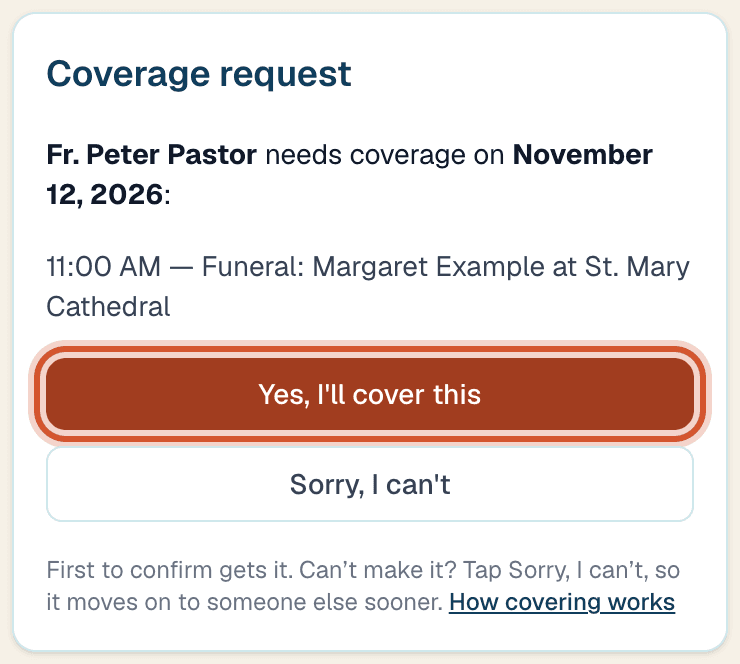
The page it opens. Tap Yes.
Rather not sign in at all?
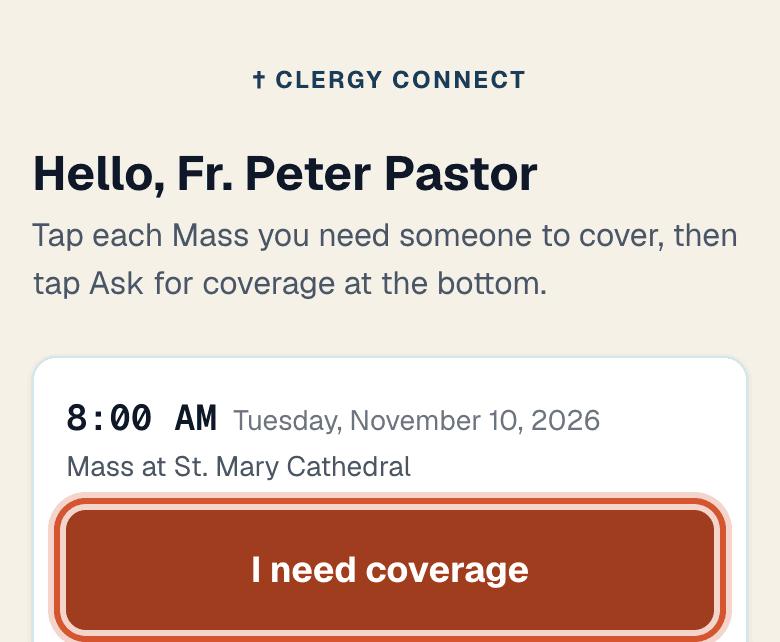
Use your Quick Link: your Masses with I need coverage beside each, and the requests near you. It's at the bottom of every email we send you.Covering a Mass
Thank you for being ready to step in. Sub only priests, this is your whole job. Print this as one page.
Step 1: Who gets asked
On your phone or computerRequests go to priests whose Travel radius (miles) reaches the church, measured from the nearest church you cover. Sub only priests are measured from the Home city in My Profile. Tick Any distance under your radius to be asked about every request in the diocese, however far.
Show meHide pictures
A priest with churches: his travel radius. 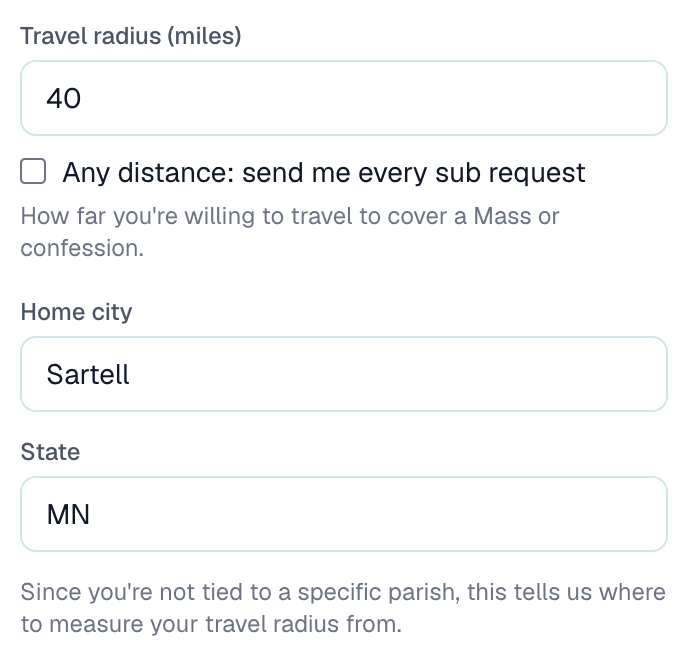
Sub only: measured from his home city. Step 2: From the email
In your emailTap Claim This Request, then Yes, I'll cover this. Can't do it? Tap Sorry, I can't: the office sees your answer, you aren't reminded about it, and once everyone asked has said no it goes on to the next priests right away. Changed your mind? Tap Undo, or just claim it. If someone got there first, the page says so.
Show meHide pictures
The email. The page it opens. Tap Yes. Step 3: From your Dashboard
On your phone or computerEverything still open is under Open across the diocese. Tap I'll cover this on any of them, even ones you weren't emailed about, or Sorry, I can't.
Show meHide pictures
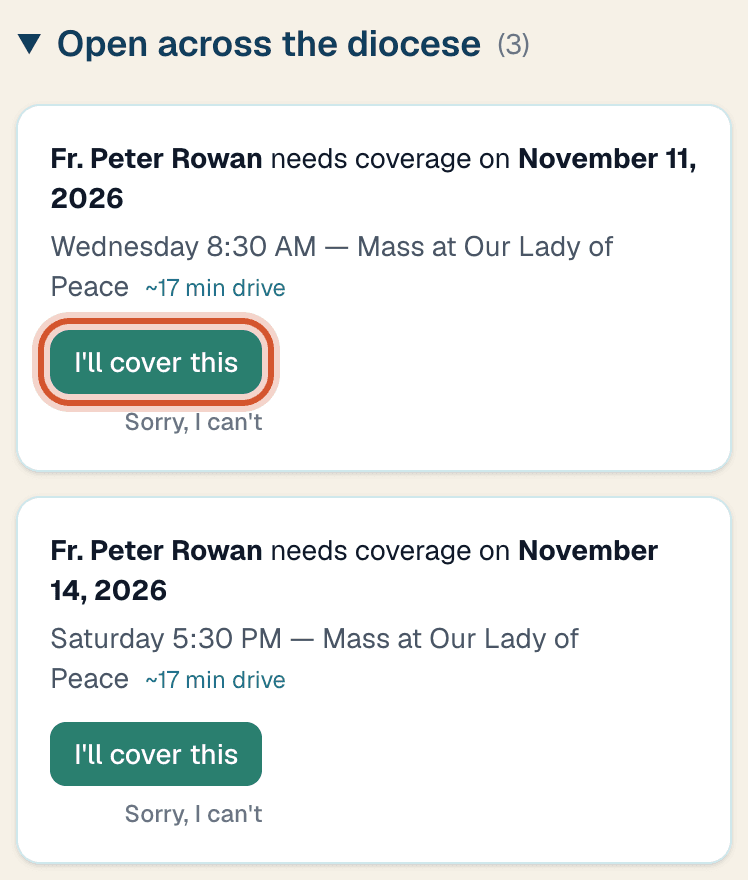
Step 4: Already busy that day?
On your phone or computerIn your emailYou'll be asked. Tap Accept — I can do both, or tick what to drop that day and tap Accept and remove the ticked commitment, or Cancel — don't accept. Your own Mass is still yours to arrange.
Show meHide pictures
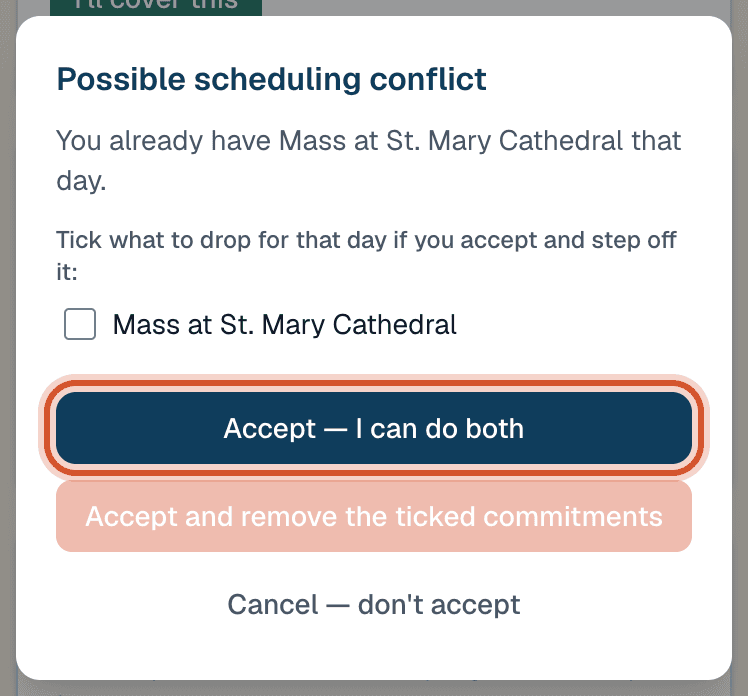
Tick what to drop that day, or keep both. Step 5: Can't make it after all?
On your phone or computerOn your Dashboard under You're covering, tap Can't make it, then Hand it back. The priest who asked is told, and it goes out again.
Show meHide pictures
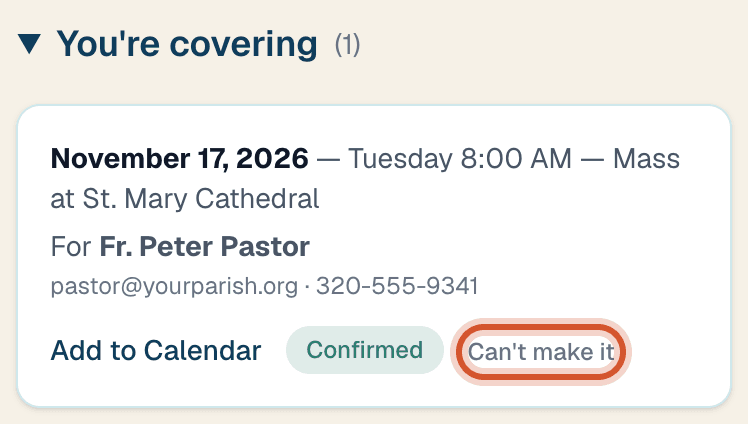
Then tap Hand it back. Step 6: Going away?
On your phone or computerIn My Profile, under Vacations, add the dates and tap Add vacation. You won't be asked to cover while you're away, and you're offered a sub for your own Masses.
Show meHide pictures
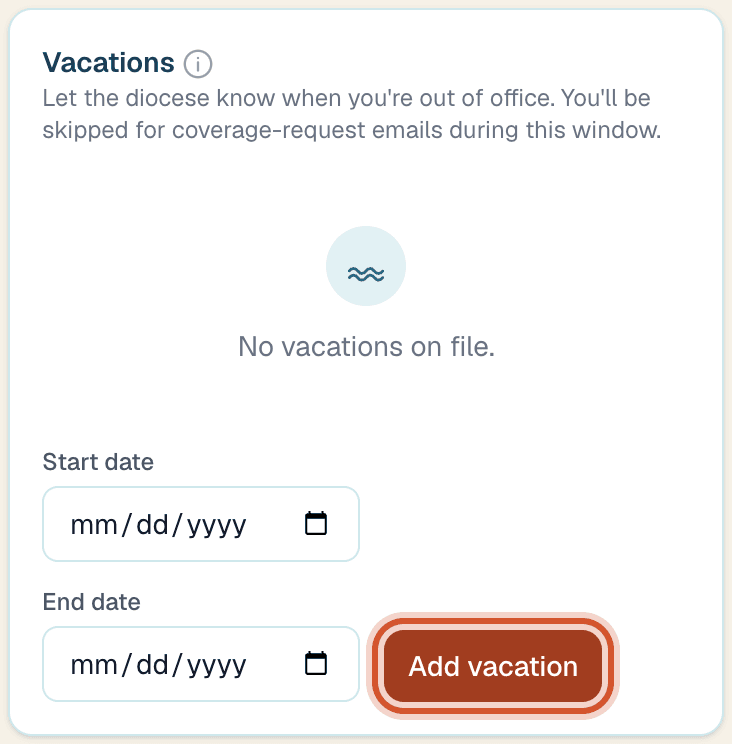
Pick the dates, then Add vacation.
For the diocese office
Admins and parish staff. Priests can skip this part. Print this as one page.
Step 1: Approving requests
Diocese officeOpen Approvals from the menu under your name. Tap Approve to send it out, pick a priest and tap Assign & approve, or Deny with a note. Under History, Responses shows who was emailed about each request and who said they can't.
Show meHide pictures
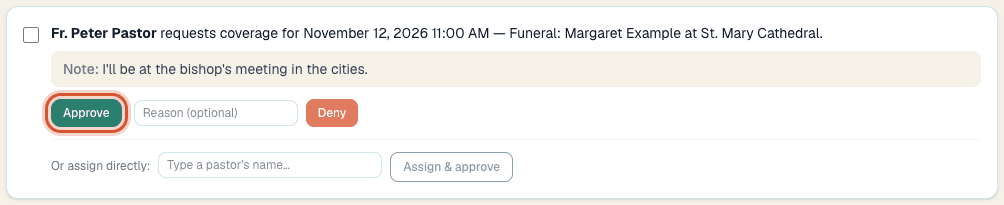
Step 2: A priest calls the office
Diocese officeIn Approvals, use Submit on behalf of a pastor. Pick the priest and the dates. It's approved as it's made, and you can assign someone right there.
Show meHide pictures
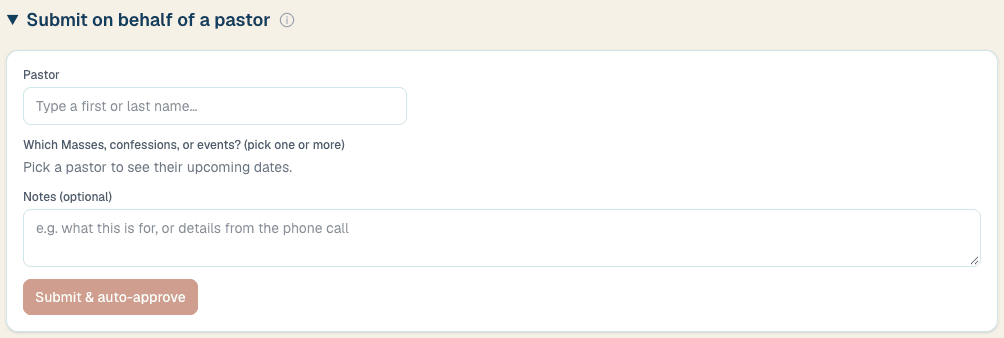
Step 3: People and roles
Diocese officeIn People & Parishes, the Users tab lists everyone. The Role menu is Priest, Priest + Admin, Sub only, Sub only + Admin, Parish staff or Admin only.
Show meHide pictures
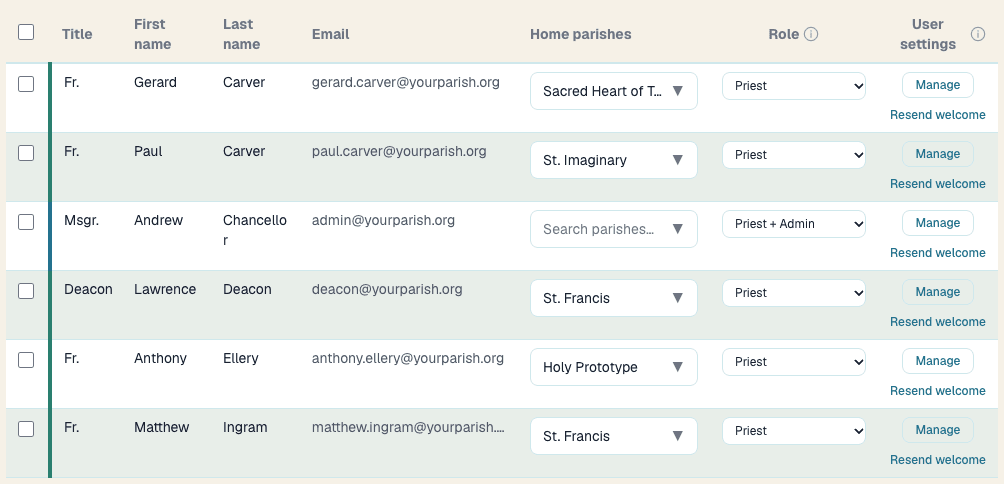
The Role menu is on each row. Step 4: Adding many at once
Diocese officeOn the Import tab, download the setup file, add one row per priest per weekly Mass, and upload it. You see every change before anything is saved.
Show meHide pictures
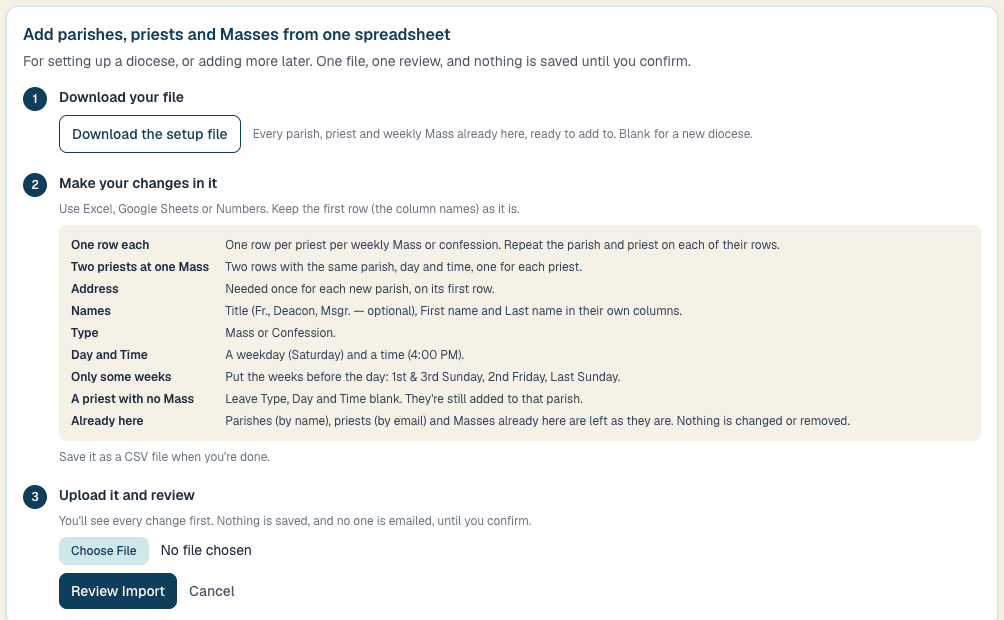
Step 5: How requests run
Diocese officeIn Settings, Requests & Matching sets what needs approval, who is asked and when the follow-ups go. Notifications is the alerts you get yourself.
Show meHide pictures
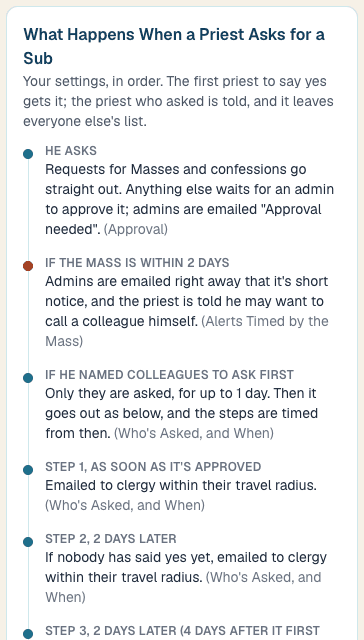
Requests & Matching starts with your own rules, in order. Step 6: Messages to the diocese
Diocese officeIn Settings, open Messages: an email, a banner in the app, or both, to whoever you choose. Drafts, templates and scheduling too.
Show meHide pictures
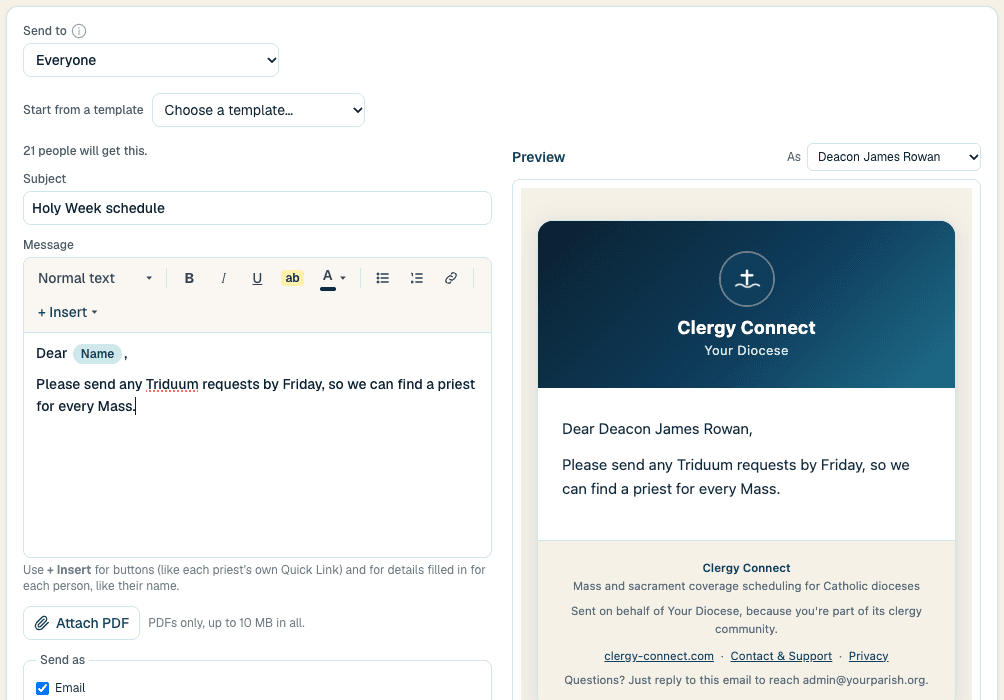
The preview shows the real email, filled in for whoever you pick. Step 7: Parish staff
Diocese officeA parish secretary works for one or more priests. Pick the priest in the Working for menu at the top of Request a Sub, Schedule or Profile, then do what he would do himself.
Common questions
I never got my welcome email, or I don't know my password.
What is my Quick Link?
A page of your own that works without signing in. It lists your upcoming Masses, each with I need coverage, and the requests near you that need a priest. It's at the bottom of every email we send you, and in My Profile under Your quick link (with a printable guide and QR code). Keep it to yourself, or give it to whoever answers the parish phone.
Do I have to sign in every time?
I tapped Claim, but someone else already has it.
I can't cover a Mass I was asked about. Do I need to reply?
How far away will I be asked to go?
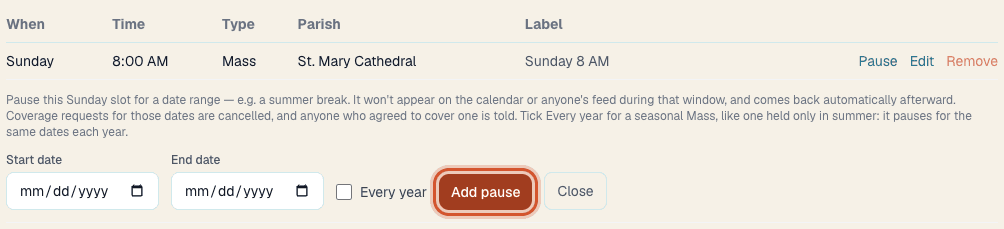
A Mass changes for a season (summer, Lent).
Who can see my phone number and email?
I get too many emails, or not the ones I want.
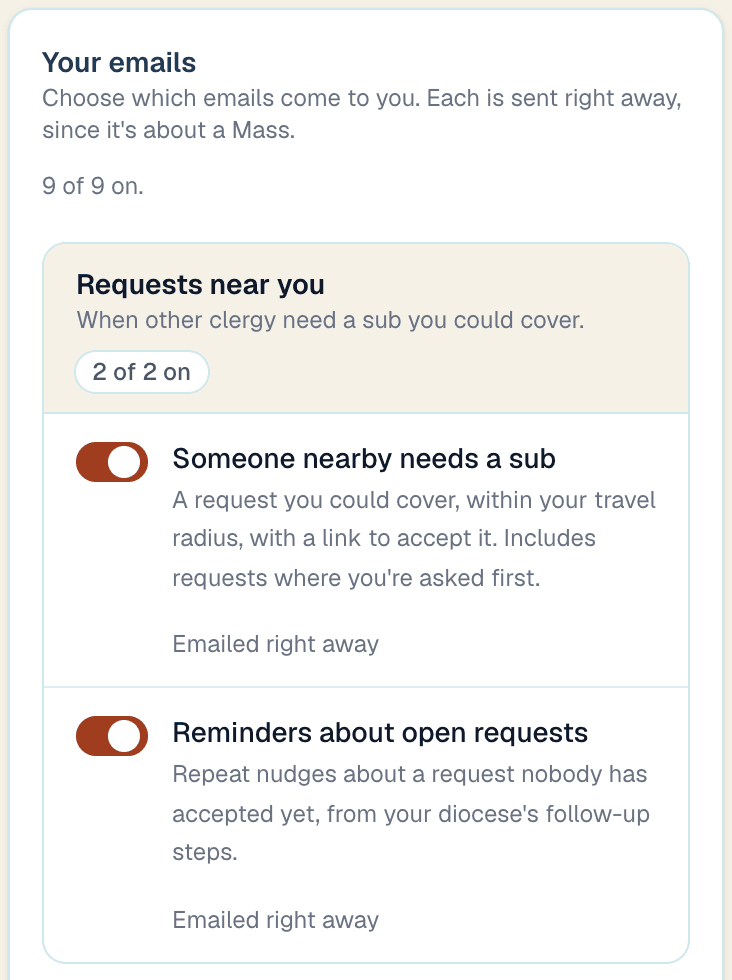
Can I get an alert on my phone instead?
I'm not comfortable doing this online.
Something not working? Send us a message.